Roles in Discord decide who can post where, who can moderate, and who can change server settings—without handing dangerous permissions to everyone who joins.
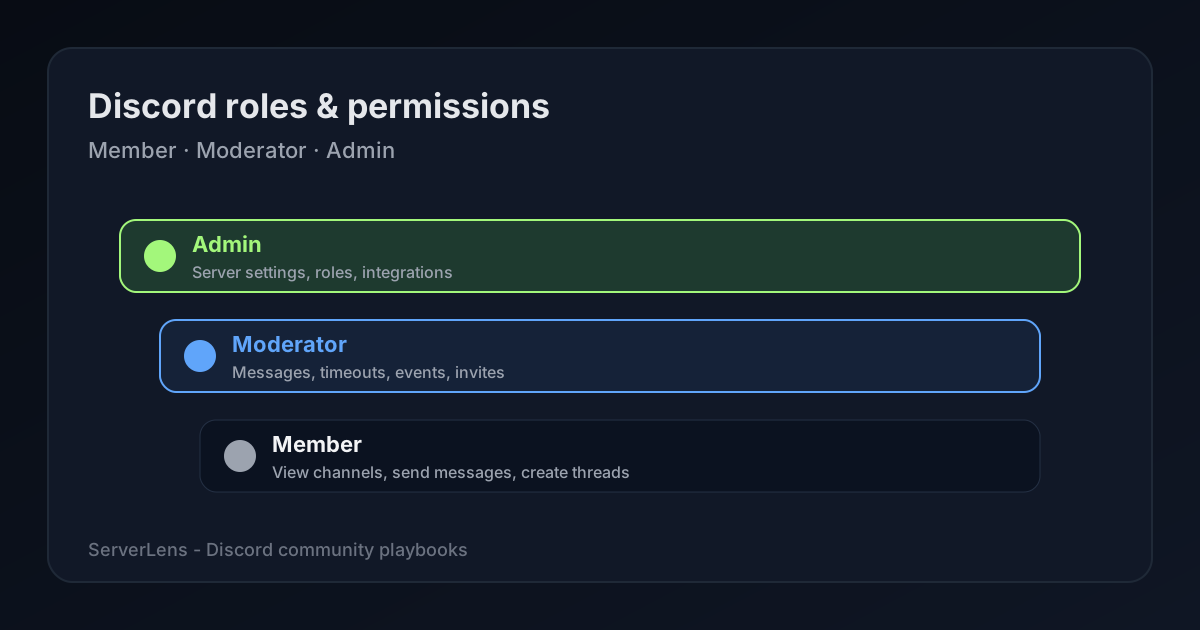
Creating roles in your Discord server is essential for managing the community effectively. Discord uses a role-based permissions system: roles dictate what members can see and do. General members need access to view channels, send messages, and create threads. Moderators need tighter control—including managing messages and removing disruptive members. Admins hold the highest power, with the ability to change server settings and create new roles.
The goal is a clear hierarchy that keeps the server safe without handing out dangerous permissions that could disrupt your community. This playbook walks through recommended permissions for each tier, setup steps, and how to review roles as your server grows. Pair it with our guide to growing a new Discord server if you are still in the launch phase—or browse Discord admin tools when you want stats without opening Server Settings.
Overview of Discord roles and permissions
Discord roles categorize members by responsibility and access level. Server owners can create custom roles, assign colors for quick identification, and apply permissions manually or through bots.
Each role controls features such as sending messages, managing channels, or moderating members. A role with kick permission can enforce order; a limited role might only participate in discussions. Review roles regularly as your community evolves.
Roles can be nested in a hierarchy: higher roles inherit permissions from lower ones when configured that way. That structure keeps the server organized while allowing channel-specific overrides when needed.
General recommendations for all members
Encourage members to introduce themselves in a designated channel to build connection. Promote respectful communication and make harassment reporting paths obvious.
A welcome channel helps new members learn rules and navigation. Reactions on messages work well for quick feedback and informal polls.
Members should know how to flag inappropriate behavior to moderators. Regular updates about server changes and upcoming events keep participation steady.
A feedback channel gives members a voice in improvements. Welcome bots can automate onboarding basics so moderators spend less time repeating the same instructions. For a full first-week playbook, see Discord onboarding best practices.
After roles are set: ServerLens helps you confirm permission changes actually improve participation—not just organization. Start with free Discord server analytics on the dashboard, or run quick checks with /stats and /channel in Discord.
Recommended permissions for moderators
Moderators keep day-to-day conversation healthy. Useful capabilities include:
- Mute or timeout members who disrupt discussions
- Manage emojis and stickers to keep culture consistent
- Connect or disconnect users in voice when needed
- Manage webhooks and events for announcements and activities
- Manage invite links to control who joins
- Create polls to gauge community interest
Provide occasional training so moderators understand what each permission does and when to use it.
| Permission | Description |
|---|---|
| Manage Messages | Pin, unpin, or delete messages. |
| Manage Threads | Rename, archive, and delete threads. |
| Kick Members | Temporarily remove users from the server. |
| Ban Members | Permanently remove users from the server. |
| Timeout Members | Temporarily restrict a member's ability to interact. |
Avoid granting Administrator to moderators unless you fully trust them with every server setting. When channel activity gets uneven, review per-channel permissions and activity in ServerLens before changing moderator scope.
Advanced permissions for server admins
Admins manage integrations, server-wide announcements, backups, and the moderation team. They can update guidelines as the community changes and oversee visibility settings that control discoverability.
For growth decisions, admins should connect role changes to measurable outcomes. Use Discord analytics for community growth to see whether permission or channel changes improve retention and activity.
Admins should also audit other roles periodically—especially any role with Manage Server or Administrator—so no account holds more power than intended.
Important considerations for role management
Clear communication matters when roles change. Tell the community what changed and why.
- Communicate role and permission updates openly.
- Trial new roles before making them permanent.
- Solicit feedback on whether permissions feel fair.
- Treat Manage Server and Administrator as high-risk grants.
- Audit roles on a schedule aligned with server goals.
- Document how powerful permissions should be used.
- Explain each role's purpose so members know who to contact.
- Involve trusted members when designing new roles.
- Offer a clear appeals path for moderation actions.
Permissions shape culture. Over-restricting members can silence discussion; under-restricting staff roles can create chaos. Balance access with the behavior you want to encourage.
Discord admin tools beyond roles
Roles are only one layer of server administration. Once permissions are set, use Discord admin tools to monitor whether changes actually improve participation:
/stats— weekly engagement snapshot after permission tweaks/channel #name— see if a channel gained or lost momentum/fix— restore bot access when analytics stop updating
Browse the full ServerLens slash command reference or explore the analytics dashboard to pair role design with measurable outcomes.
Setting up permissions in Discord
- Identify user groups — Member, Moderator, Admin, plus any specialty roles.
- Create base roles before adding niche roles for events or creators.
- Use Discord role templates when they match your server type.
- Test in a private channel before rolling permissions server-wide.
- Use role colors so members recognize staff quickly.
- Revisit permissions as channels and membership grow.
- Log changes to roles so future admins understand the history.
- Consider bots for auto-role assignment based on rules you define.
For a lightweight weekly review rhythm after setup, see Discord analytics for community growth to track whether permission changes improve participation.
Additional resources for further learning
- Discord Support — Roles and permissions for official documentation
- ServerLens blog: Analytics, Engagement, and Playbooks
- Community management forums and creator tutorials for role-design patterns
- Webinars and podcasts on moderation at scale
Staying current on Discord feature updates prevents permissions drift—especially when new channel types or integration options appear.
Leveraging ServerLens for community growth
ServerLens helps you see how roles correlate with engagement. If moderators are less active than expected, duties or permissions may need adjustment. If members churn after onboarding, thread or channel permissions might be too restrictive.
Track retention by cohort, compare channel activity before and after role changes, and identify members who consistently contribute—they are often strong moderator candidates. For community-level metrics beyond roles, see Discord community analytics.
Experiment deliberately: test thread creation for members, event-host roles, or restricted announcement channels, then review Discord analytics for community growth to see what stuck.
Add ServerLens to your server to measure how permission and role changes affect community health.
Summary: Set up Discord roles with a clear Member → Moderator → Admin hierarchy, grant only the permissions each tier needs, test changes in private channels first, audit high-risk permissions regularly, and use analytics to confirm role changes improve engagement—not just organization.